How Can We Help?
How to Revoke (Cancel) a Transaction

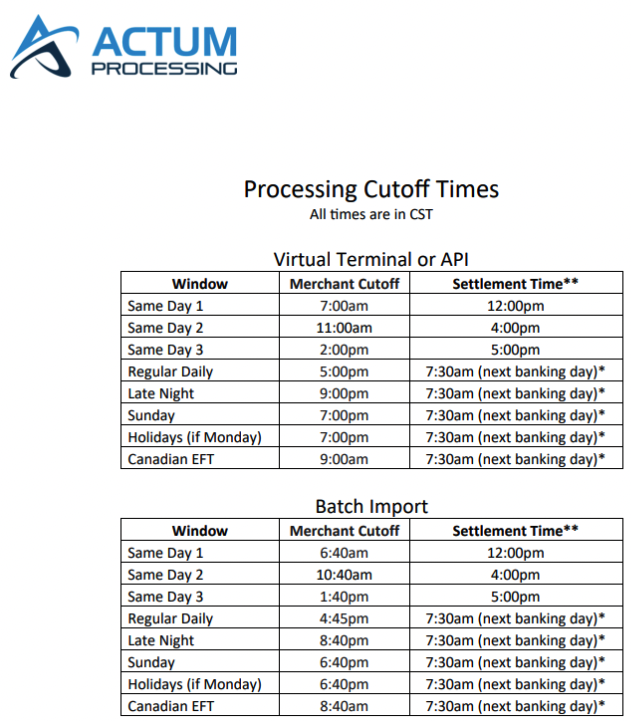
This article provides a step-by-step instructions with canceling or revoking a transaction while keeping these settlement cut-off times in mind.
- • For Regular Transactions, the cutoff time is 5 p.m. CT (6 p.m. ET).
- • Meanwhile, the cut-off time for Same-Day Transactions are 7 a.m. CT (8 a.m. ET), 11 a.m. CT (noon ET) and 2 p.m. CT (3 p.m. ET).
- For a Same-Day debit transaction, a customer (receiver) will see the debit by 6 p.m. ET on the same day of submission. As for a Same-Day credit, a receiver will see it arrive in their bank account as a pending credit by 6 p.m. ET.
- • For Late Night Transactions, the cutoff time is 9 p.m. CT (10 p.m. ET). The transaction can only revoked if it was submitted after 5 p.m. CT and was revoked before the Late Night Cutoff time of 9 p.m. CT. For transactions submitted after 9 p.m. CT on Fridays, the cutoff time to revoke a transaction is by 7 p.m. CT on Sunday.
- • If a merchant has Late Night/File ability, it is specified in the Final Exhibit B. Also, Same-Day ability does not expedite settlements.
- • For a Same-Day debit transaction, a customer (receiver) will see the debit by 6 p.m. ET on the same day it was submitted.
- • As for a Same-Day credit, a receiver will see it arrive in their bank account as a pending credit by 6 p.m. ET.
How to Revoke a Transaction
1. Log in to the Actum Portal at https://merchant.actumprocessing.com. Refer to the Multi-Factor Authentication (MFA): How to Use via Actum Portal article for further login instructions.
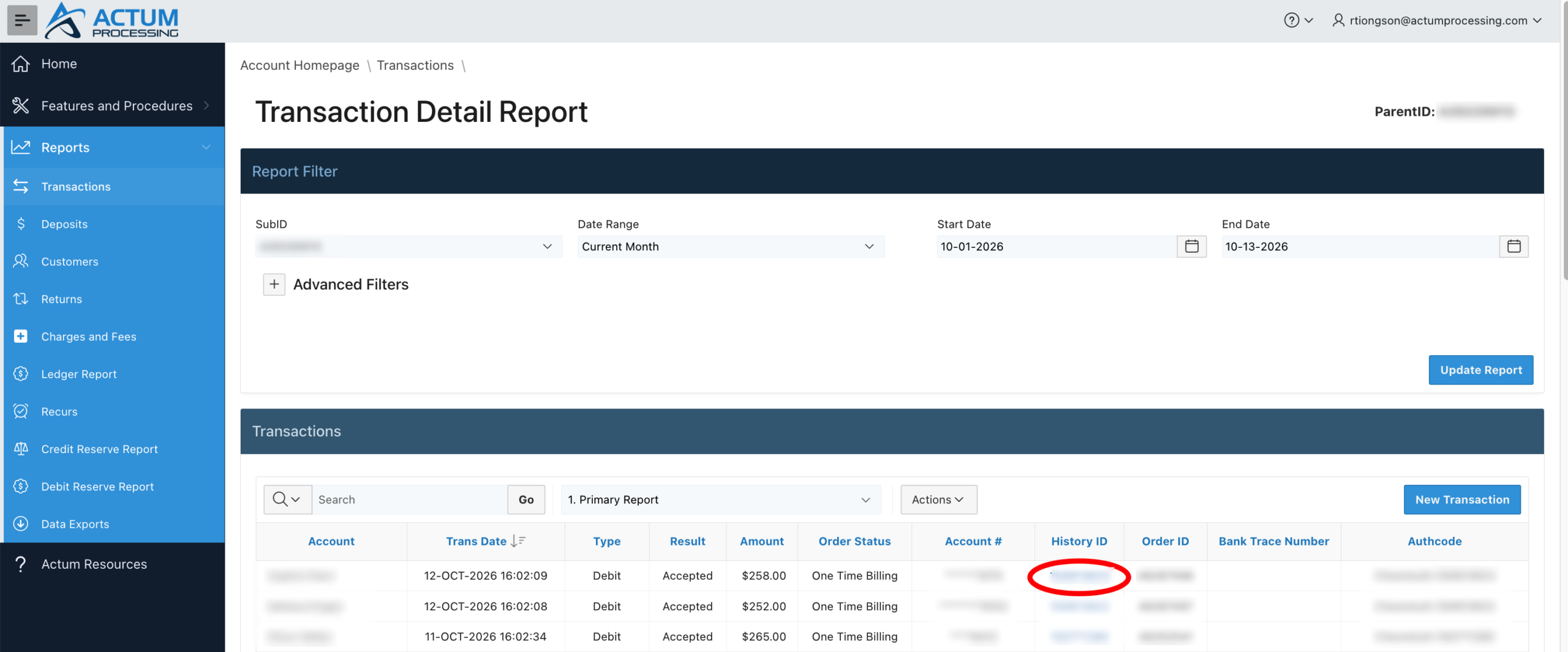
2. Press the triple-bar icon to the left of the Actum Processing logo, click the right arrow icon next to Reports and choose Transactions.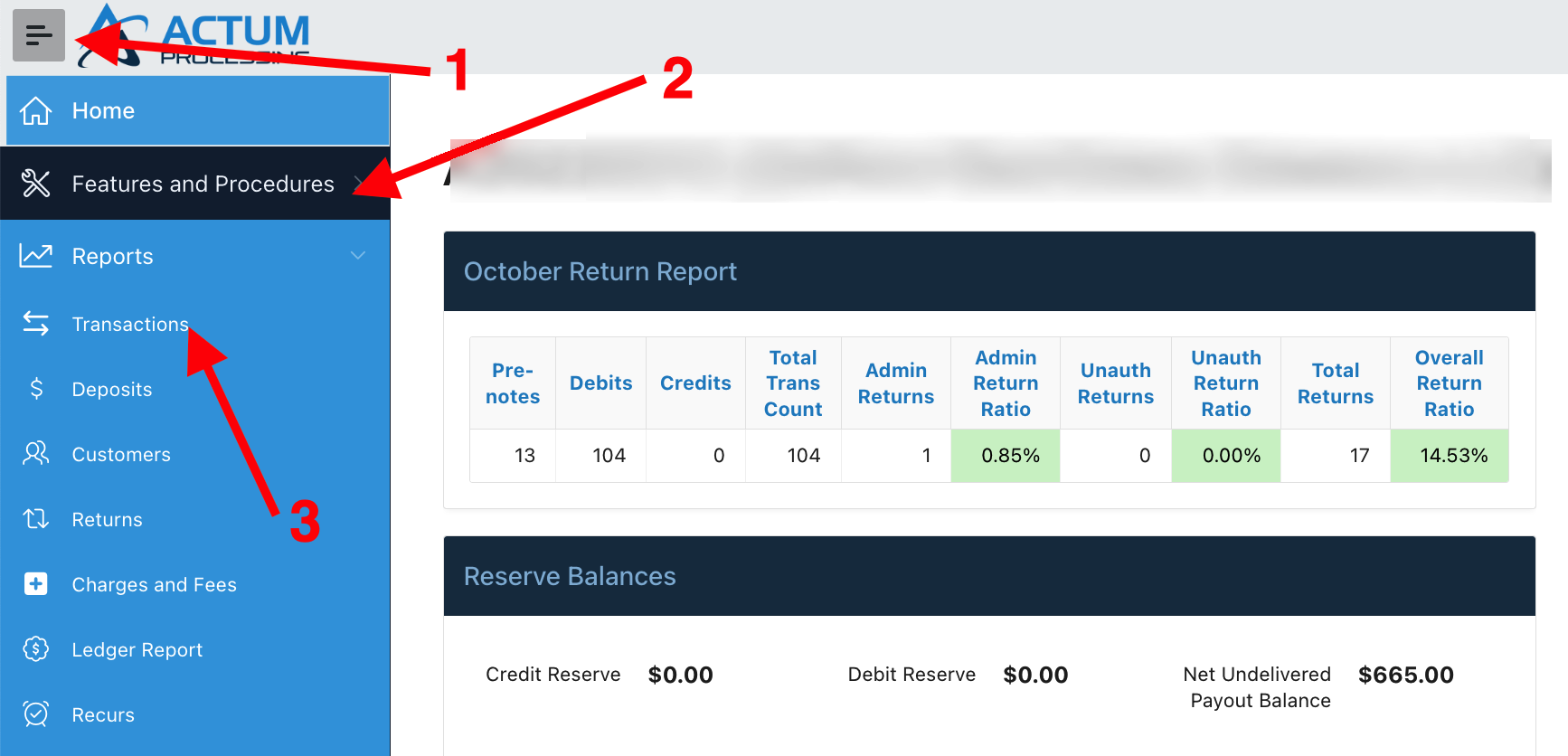
3. Set the Date Range accordingly; otherwise, set up the applicable Start and End Dates and press Update Report.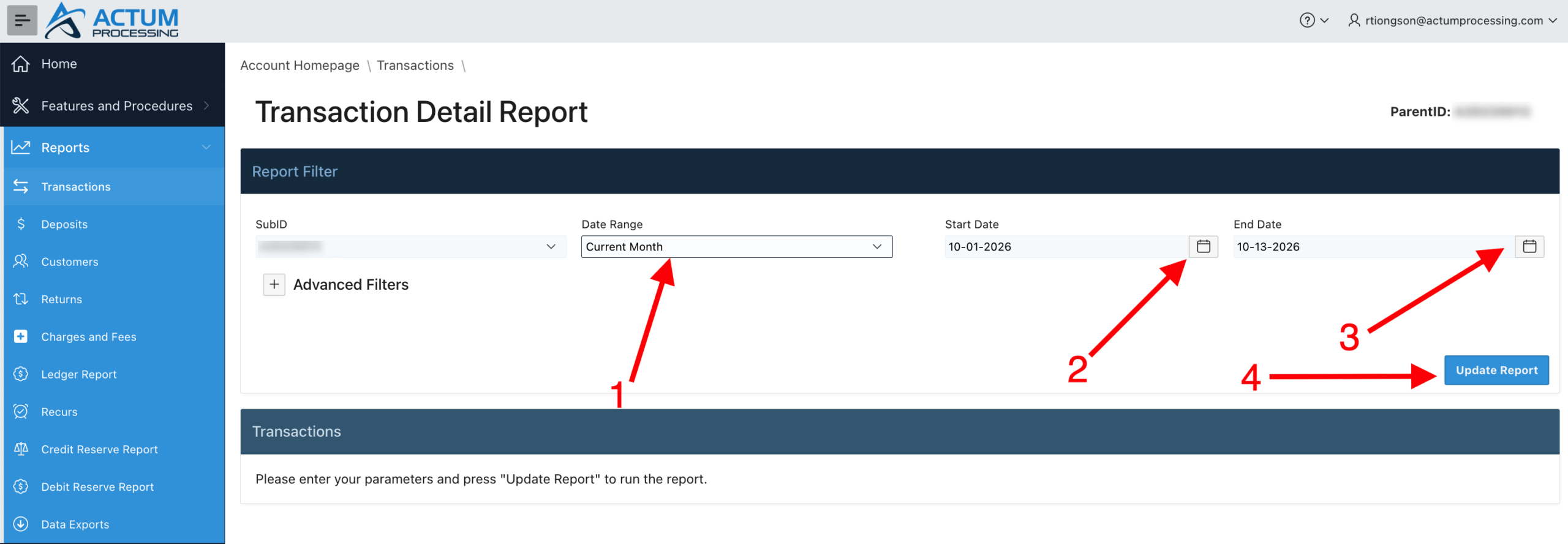
4. Click on the applicable History ID to prompt the Transaction Configuration popup window.
5. Select the Revoke transaction configuration option.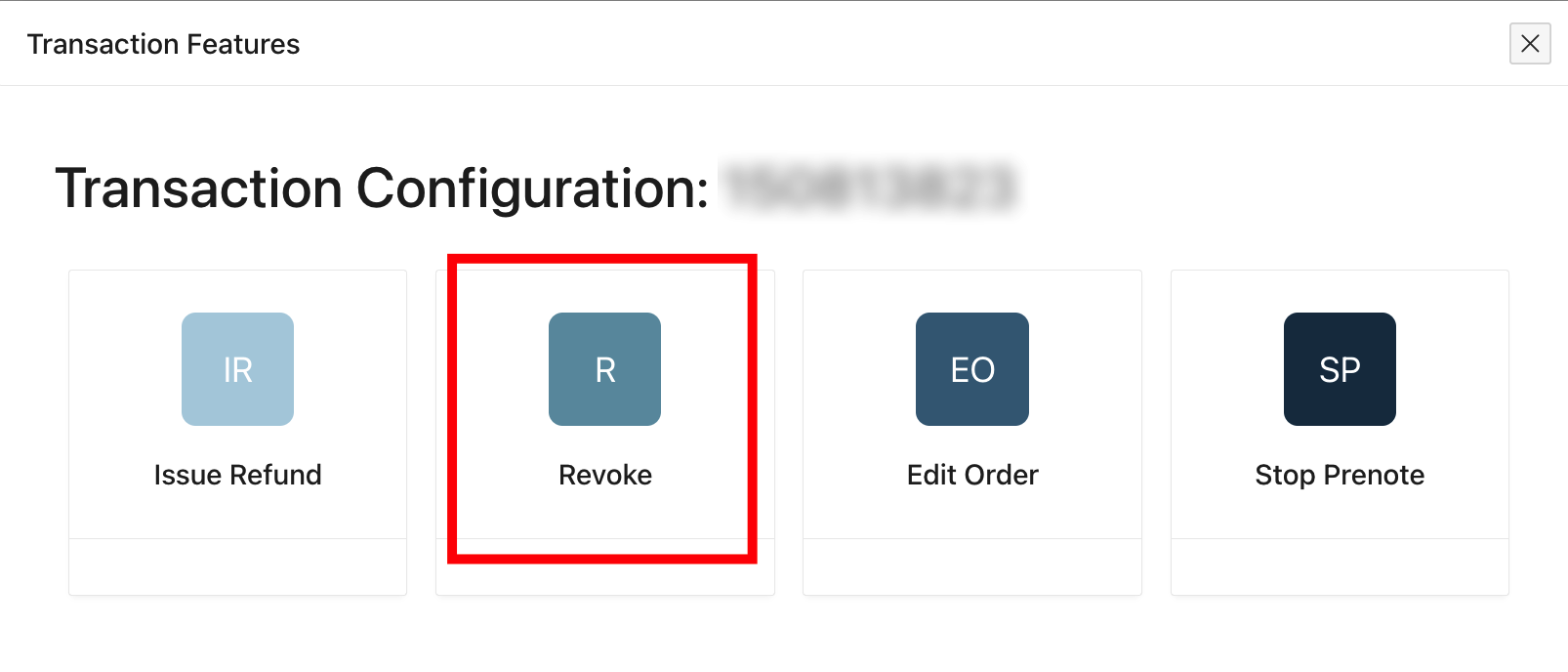
5. Click on Revoke.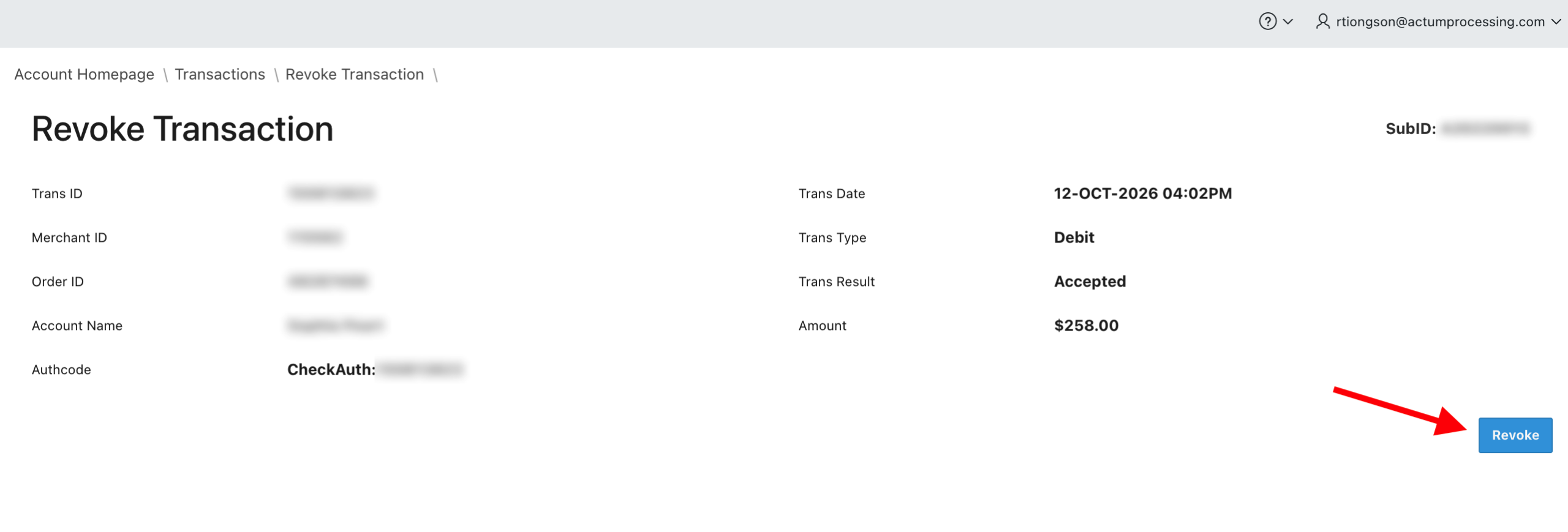
6. Select OK to confirm the intent of revoking the transaction.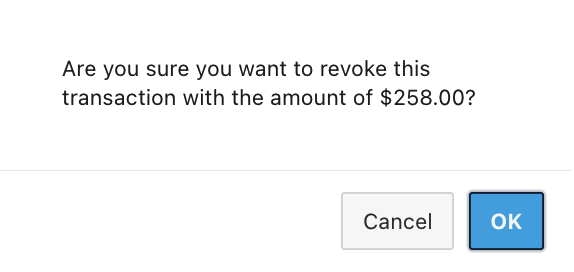
7. A message appears confirming that the transaction has been revoked.
Notables
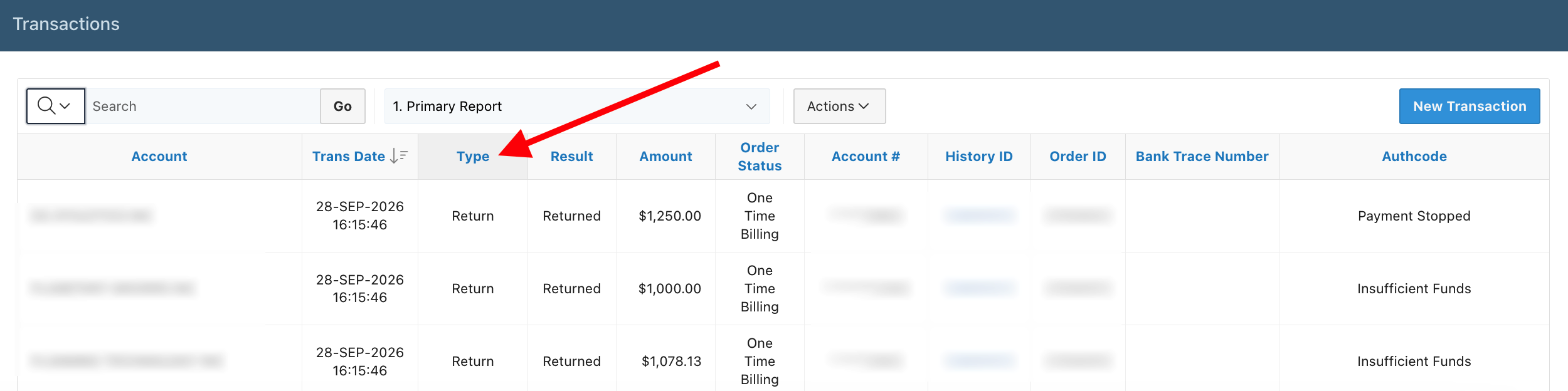
- 1. Return to the Transaction Detail Report and click Type.
- 2. In the text field of the filter pop-up window, type revoke and choose Revoke.
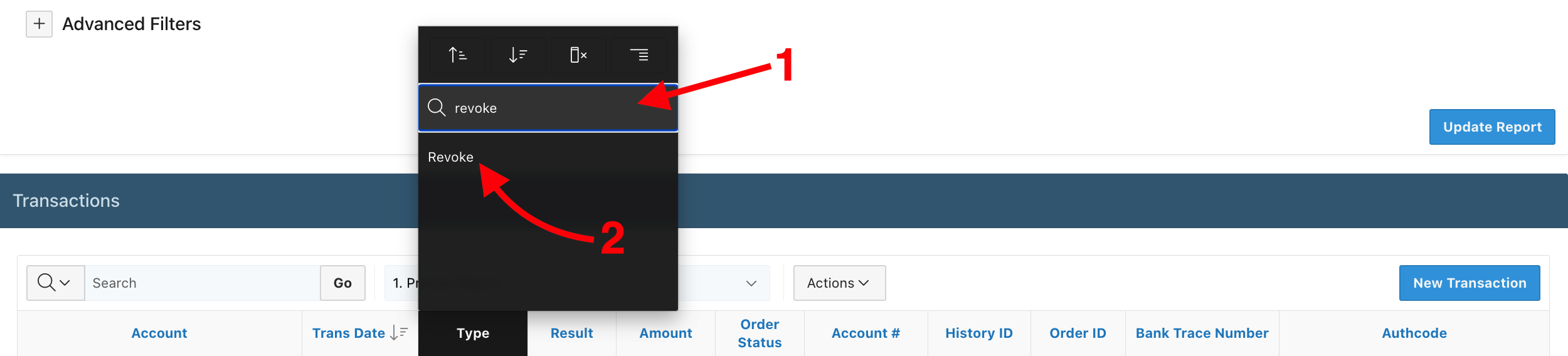
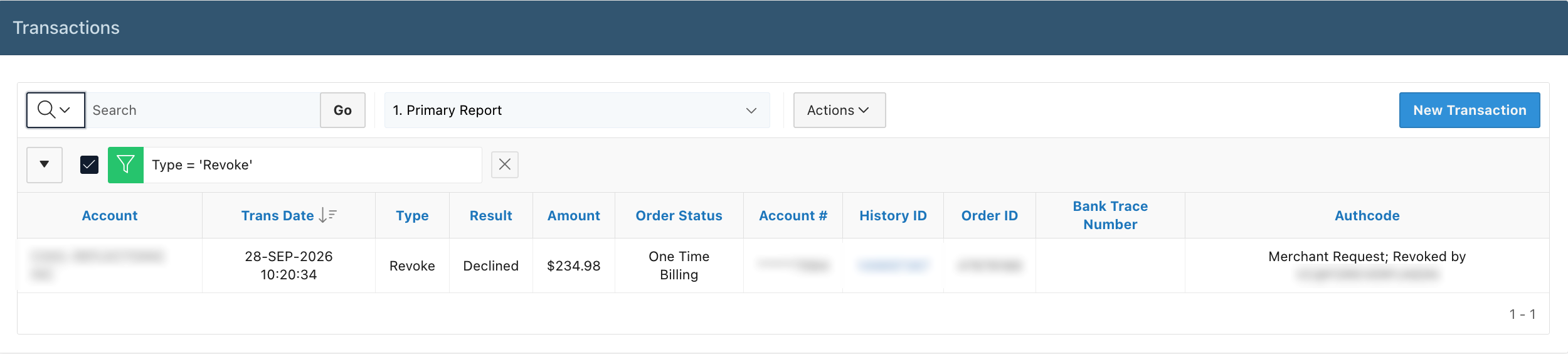
- 3. The Transaction Detail Report will confirm the successful cancellation or revocation of the transaction.